Gmail Set-Up for Emailed Invoices & Other Functions
Overview
If you're using a Gmail Account instead of Ankota's "no-reply" default email address, please watch video or complete steps below to get your environment set up!
- Step 1 - verify two step authentication - Watch Video
- Step 2 - Click URL - https://myaccount.google.com/apppasswords
- Step 3 - Create an App Password - Watch Video
- Step 4 - Add password to Ankota (directions below) or email support@ankota.com for technical assistance
Get your Google Generated App Password
STEP 1
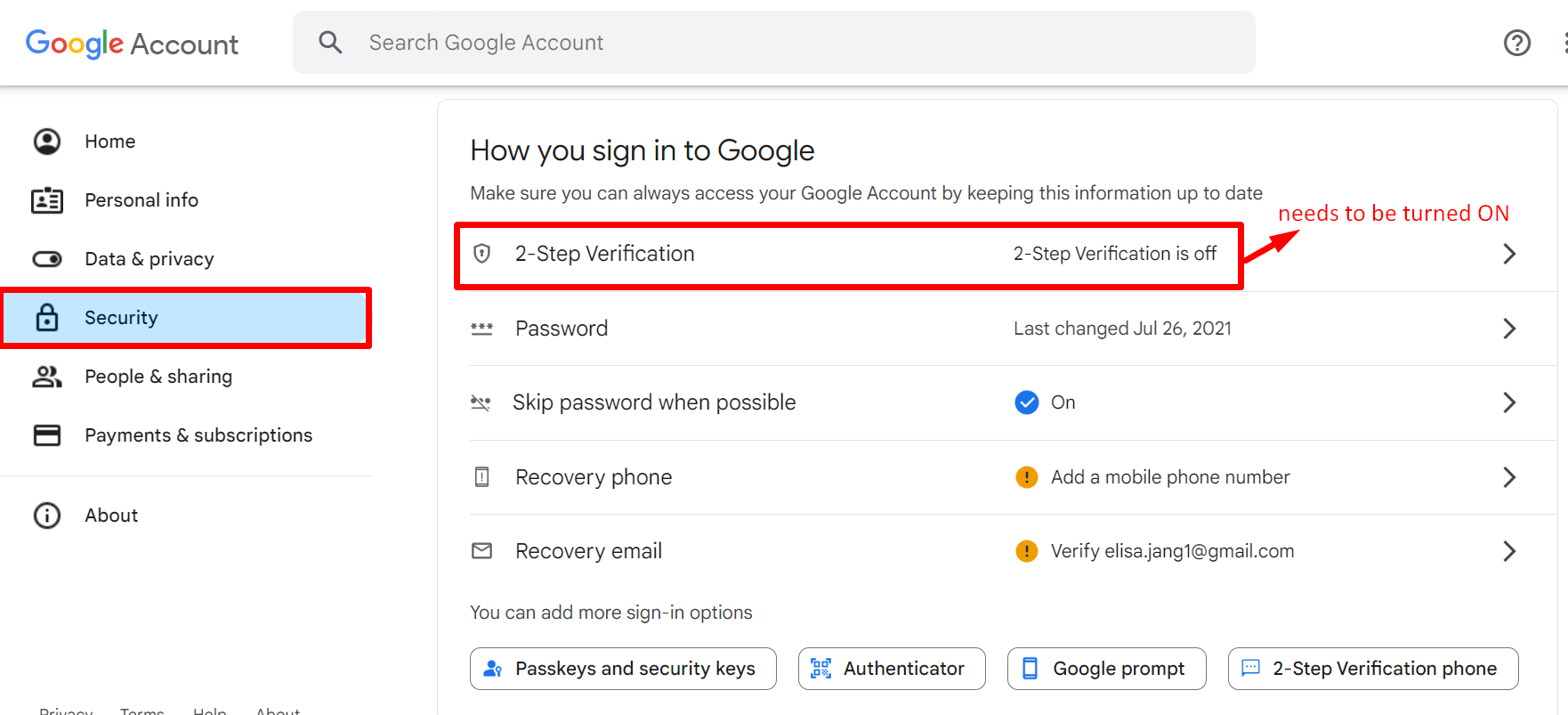
- Login to Google
- Go to Account
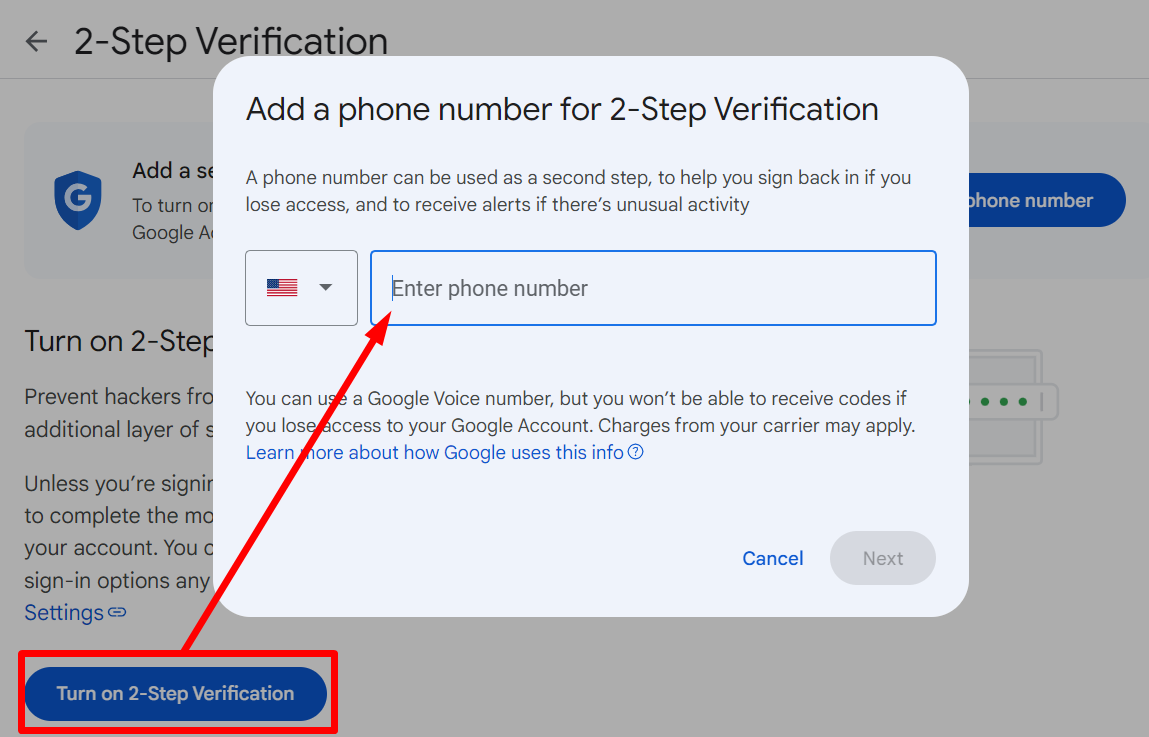
- Click Security and turn on 2-step verification
- Add Phone Number
-
STEP 2
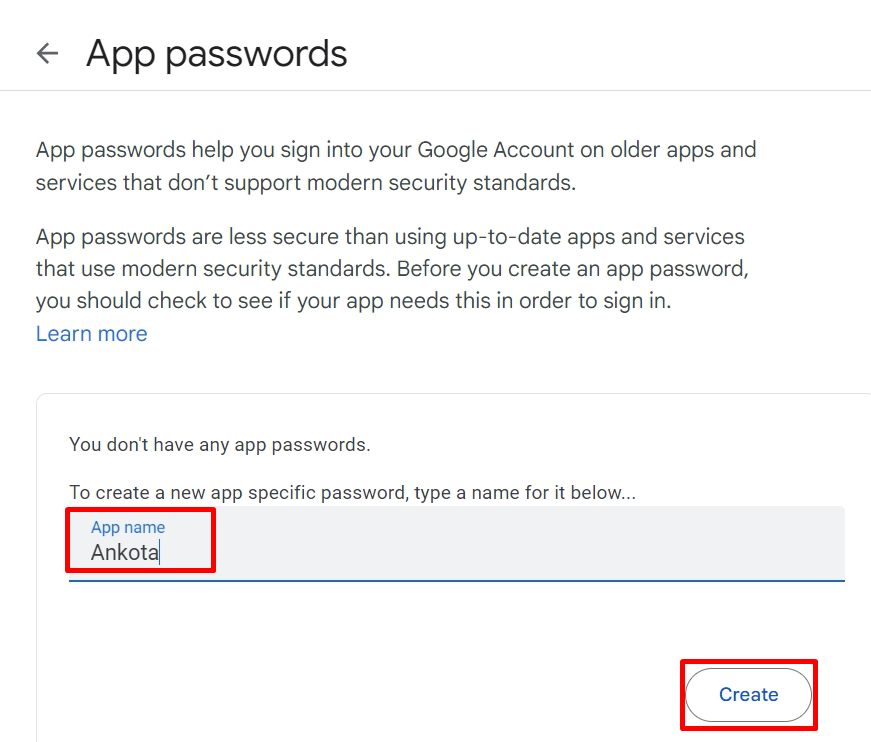
- Click HERE to CREATE AN APP PASSWORD
- Type in Ankota
- Type in Ankota
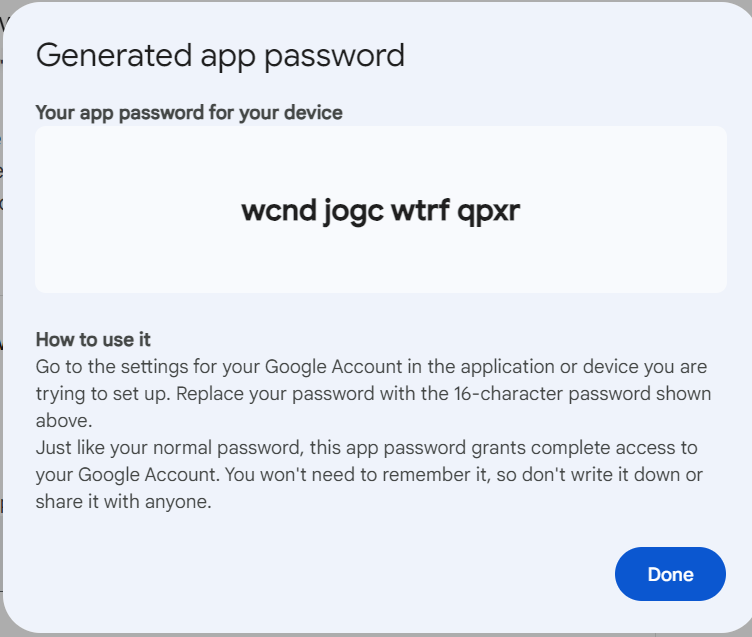
- Copy & Screenshot the Generated App Password
- do not use the password in the screenshot below; this is just an example
- Click HERE to CREATE AN APP PASSWORD
-
STEP 3
- Send your gmail and app password to support@ankota.com to complete your set-up
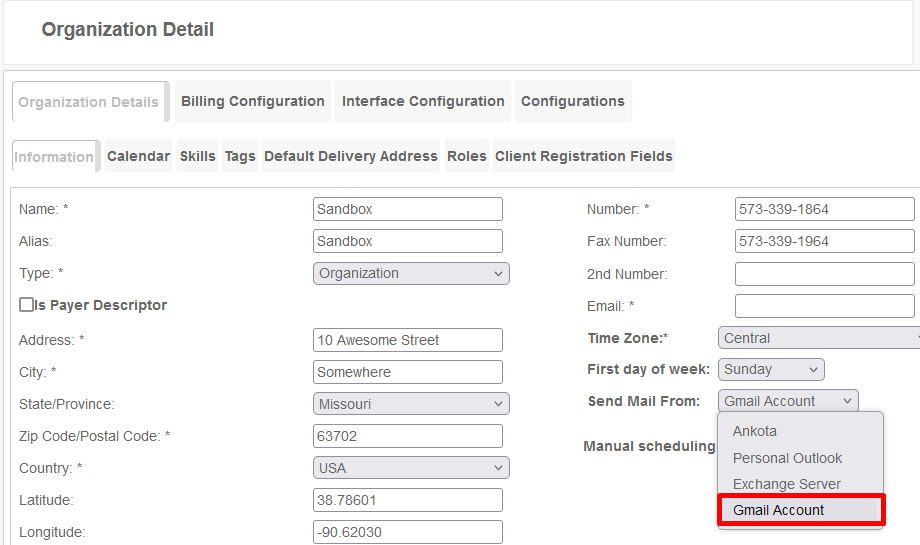
Configure Gmail in Ankota
We are happy to get work on this step for you! Please complete steps above and email support@ankota.com with gmail and app password. If you wish to take this step yourself, the directions are:
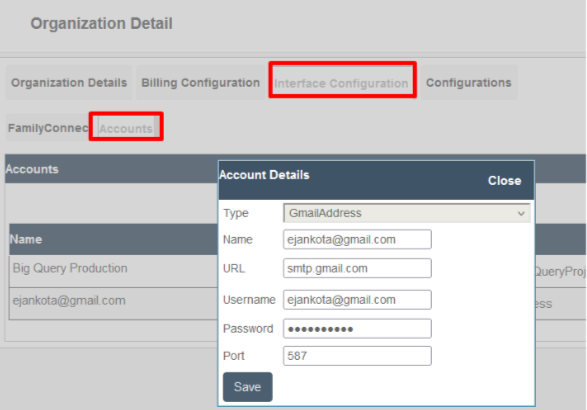
- Log in to environment
- Click Settings
- Click Organization Details
- Select Tab Interface Configurations
- Select Subtab Accounts
- Name - gmail
- URL - smtp.gmail.com
- Username - gmail
- Password - app password from Google (COPY & PASTE THE PASSWORD, INCLUDING SPACES: DO NOT TYPE IN)
- Port - 587