Scheduling Coordinators / Care Coordinators
Overview
Requires Configuration; Contact Support
Scheduling coordinators, which can be "captioned" (renamed in your system) as care coordinators, supervisors, or team leaders, typically manage not only their own workload but also review their team's data in the Business Intelligence Dashboard, and/or ensure other caregivers complete their workload. Some scheduling coordinators may be nurses who help manage the scheduling of certain clients' visits as well.
To support this function, Scheduling Coordinator permissions can be assigned in Ankota to the case manager as part of the Assigned Caregiver special permissions function, so that caregivers with the Scheduling Coordinator permissions can limit their view on the following pages:
Client search
Client details
Visit approval dashboard
Client Schedule Board
Visits
Note page access only works if ankota.net page view permissions were established and assigned to the caregiver as well as the Scheduling Coordinator permissions. See below for further details.
Setting up Scheduling Coordinators
The first step in creating care coordinators is defining your name for the role (Care Coordinator, Scheduling Coordinator, Supervisor, Team Leader, etc.), then assigning that role a permissions level.
To do so,
Log in to your environment
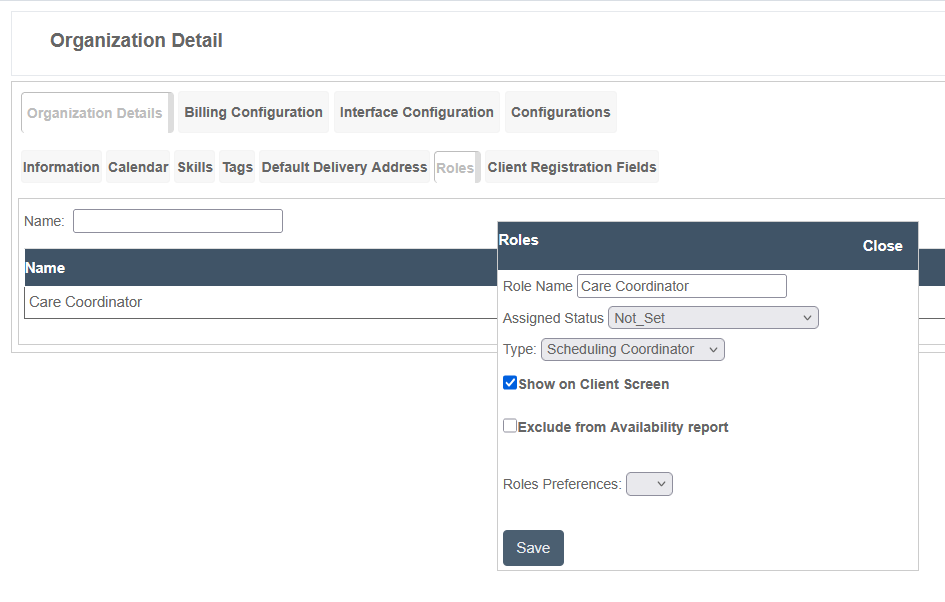
Click your organizations name or go to Settings --> Organization Detail
Click the Organization Details --> Roles subtab
Click Add New
Define the Role Name (what do you want to call this role)
Assign to Type: Scheduling Coordinator (set the permissions level)
Assigning Scheduling Coordinator View Permissions
There are two kinds of Scheduling Coordinator permissions:
permissions to view and manage a unique caseload of clients
-
permissions to view and manage a unique caseload of caregivers
These are your Supervising Scheduling Coordinators
Note this requires configuration, both for the Coordinator caseload functionality and to tailor a template viewpoint for Scheduling Coordinators.
Assigning CLIENT Scheduling Coordinator Permissions
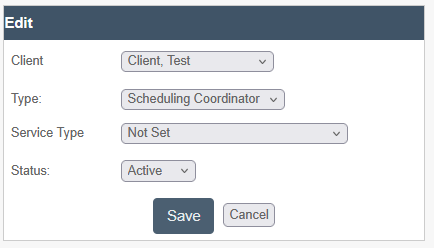
Caregivers will see clients they have Scheduling Coordinator permissions for. To assign these permissions,
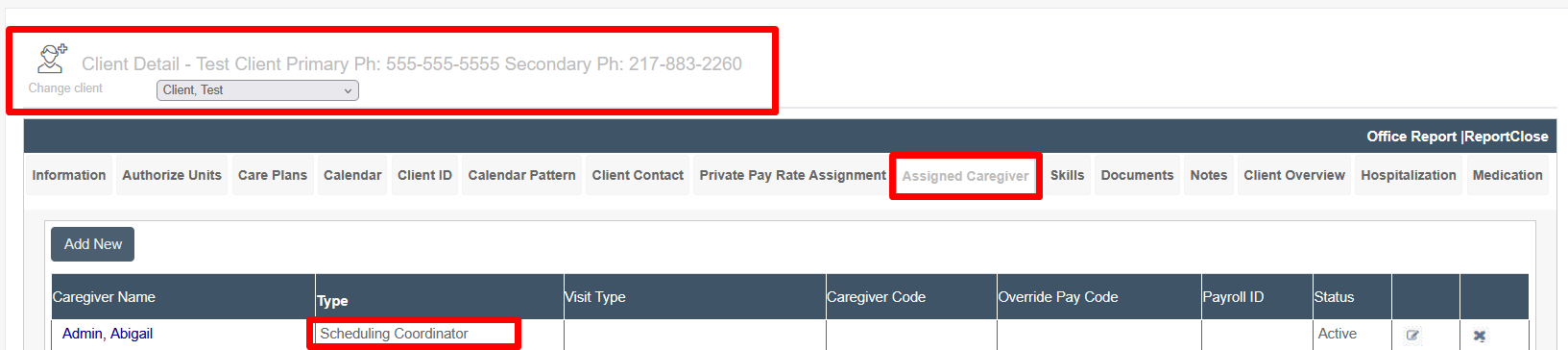
Go to the Client
Click the Assigned Caregiver tab
Assign the caregiver with the Type: Scheduling Coordinator
Alternately,
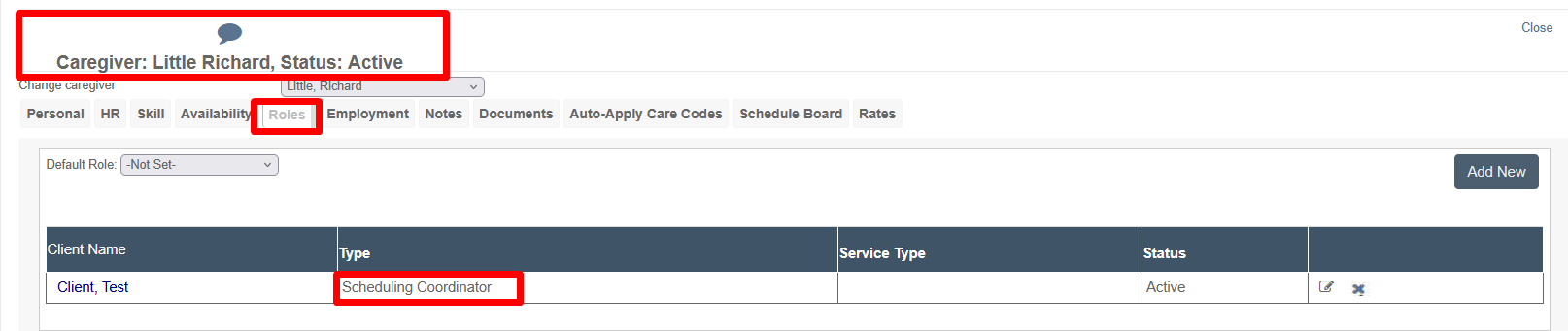
Go to the Caregiver
Click the Roles tab
Click Add New to assign the caregiver to the client
Choose Type: Scheduling Coordinator
Assigning CAREGIVER Scheduling Coordinator Permissions
In the case when you want a caregiver to be able to manage/view other caregivers, you will assign caregiver scheduler coordinator permissions.
To make the caregiver eligible to view and manage other caregivers,
Go to the Caregiver
Click the Roles tab
Click Default Role: and select Scheduling Coordinator

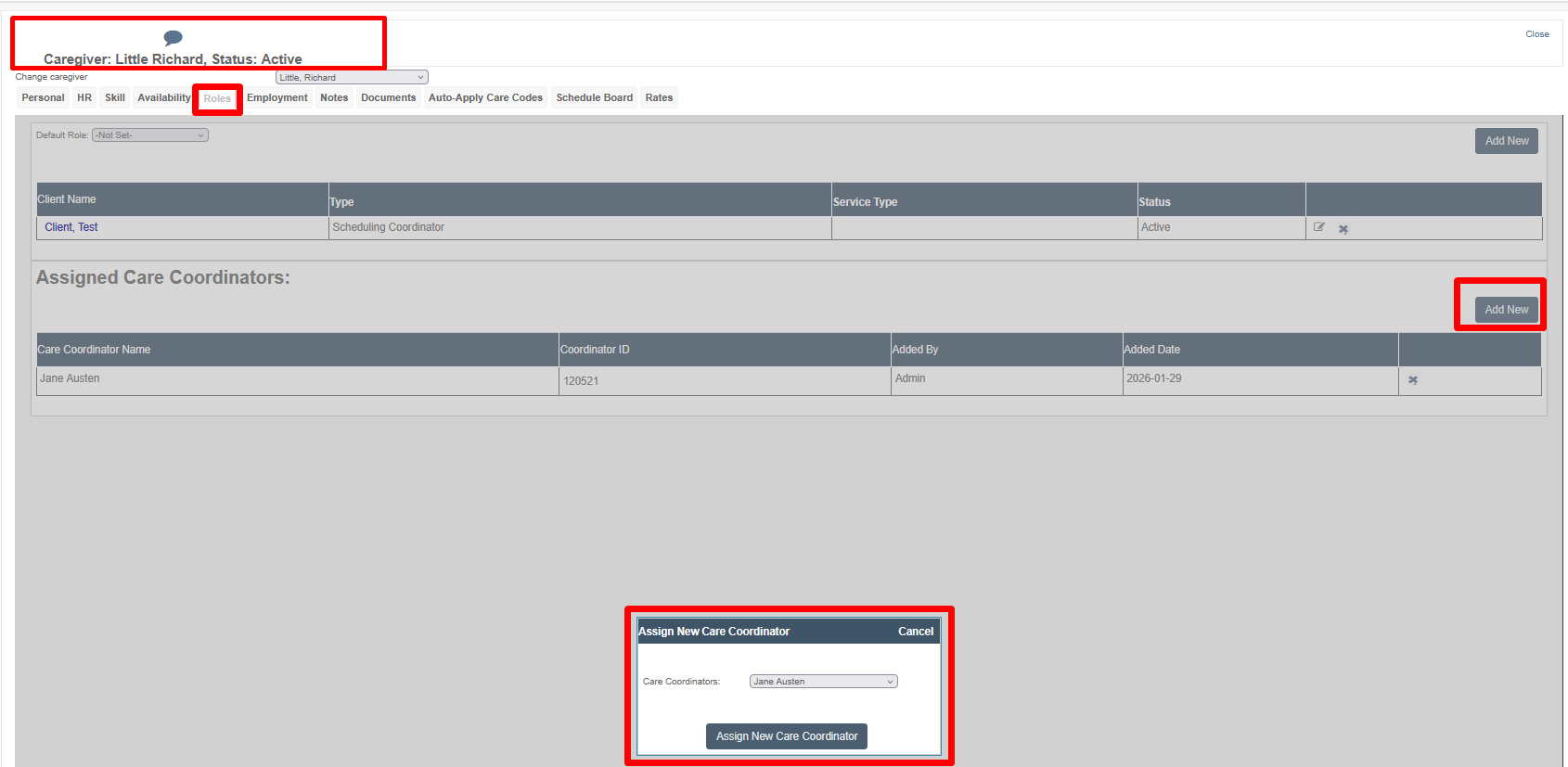
To assign a Scheduling Coordinator to manage a specific caregiver (in the Supervising Scheduling Coordinator role),
Go to the Caregiver
Under Assigned Care Coordinators, click Add New
Pick the Scheduling Coordinator from the list of coordinators and assign them