
Caregiver Recruitment
Overview
The Caregiver Recruitment engine is a powerful feature that allows you to create and publish job postings, accept caregiver applications, quickly review candidates with AI assistance, schedule and evaluate interviews, manage candidates through your hiring process, and analyze recruiting results.
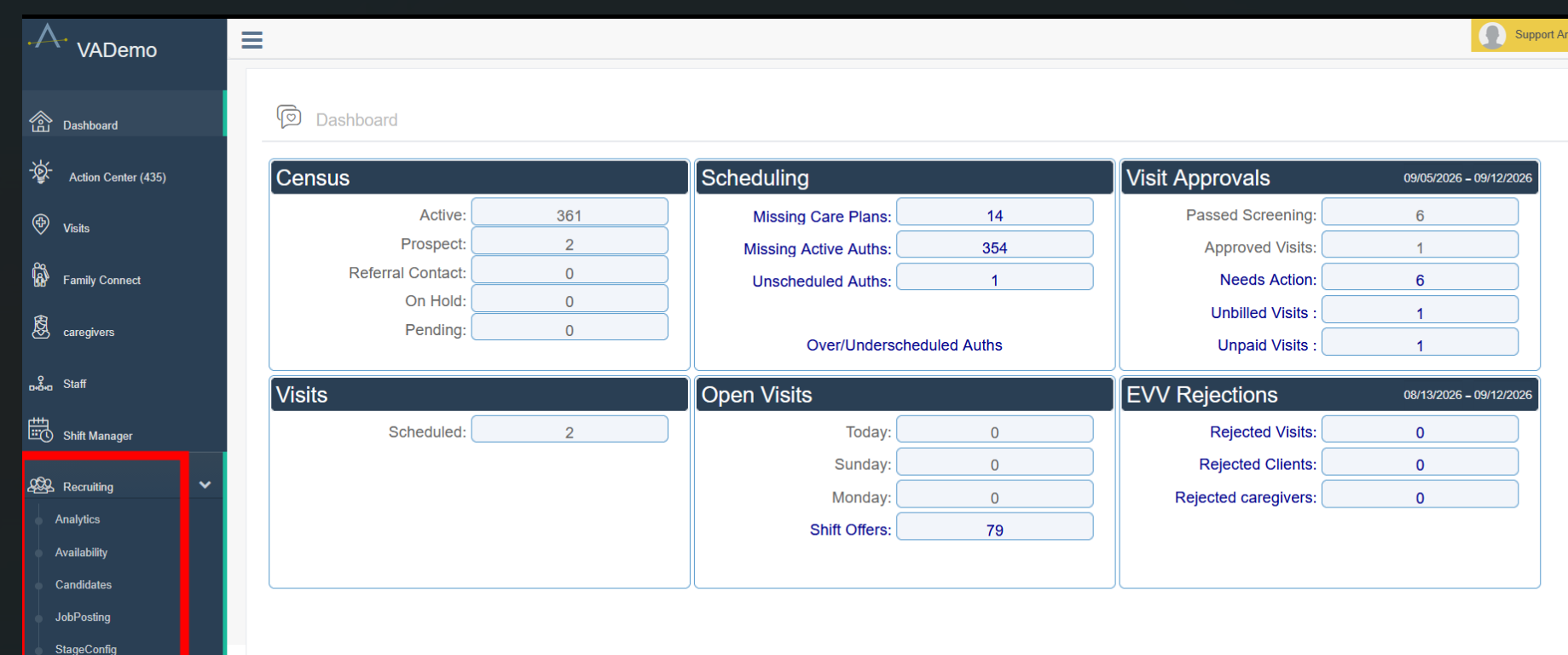
The Recruiting menu includes five primary areas: Stage Configuration, Availability, Candidates, Job Posting, and Analytics. See below for a detailed walkthrough of each feature and the overall recruiting process.
Section Overview
See below for a more detailed walkthrough of each section.
Stage Configuration
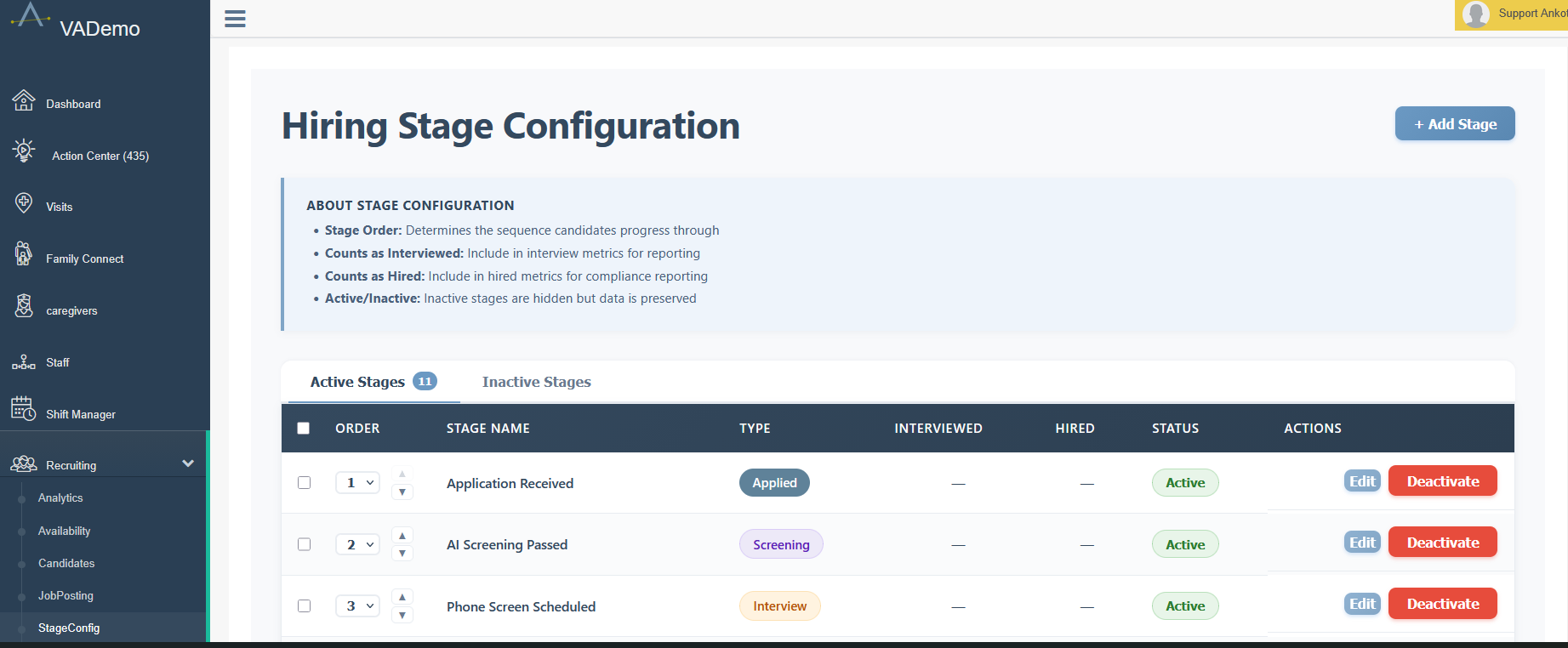
Stage Configuration defines the hiring process candidates will move through. Ankota provides default stages, which you can review and adjust to match your agency's recruiting workflow. This is not required for set-up, but if desired, you can heavily customize your workflow.
Each stage has an assigned order and type. Stages can also be configured to indicate whether reaching that stage counts as an interview or a hire for recruiting analytics.
Begin by going to the Main Menu and clicking on Recruiting, then Stage Configuration. Review the default stages and adjust as needed, adding or removing as desired.
To add a stage, click + Add Stage.
To change an existing stage, click Edit.
To remove a stage from your active recruiting process, click Deactivate.
Use the Order controls to determine the sequence in which candidates normally progress.
Use the Active Stages and Inactive Stages tabs to review stages currently in or removed from your workflow.
NOTE: Deactivating a stage does not delete its historical data.
Analytics
Begin by going to the Main Menu and clicking Recruiting > Analytics.
Applications, interviews, attendance, hirings, as well as the various stages of hiring, are all provided here. As desired, open to review your recruiting status.
Availability
Begin by going to the Main Menu and clicking Recruiting > Availability.
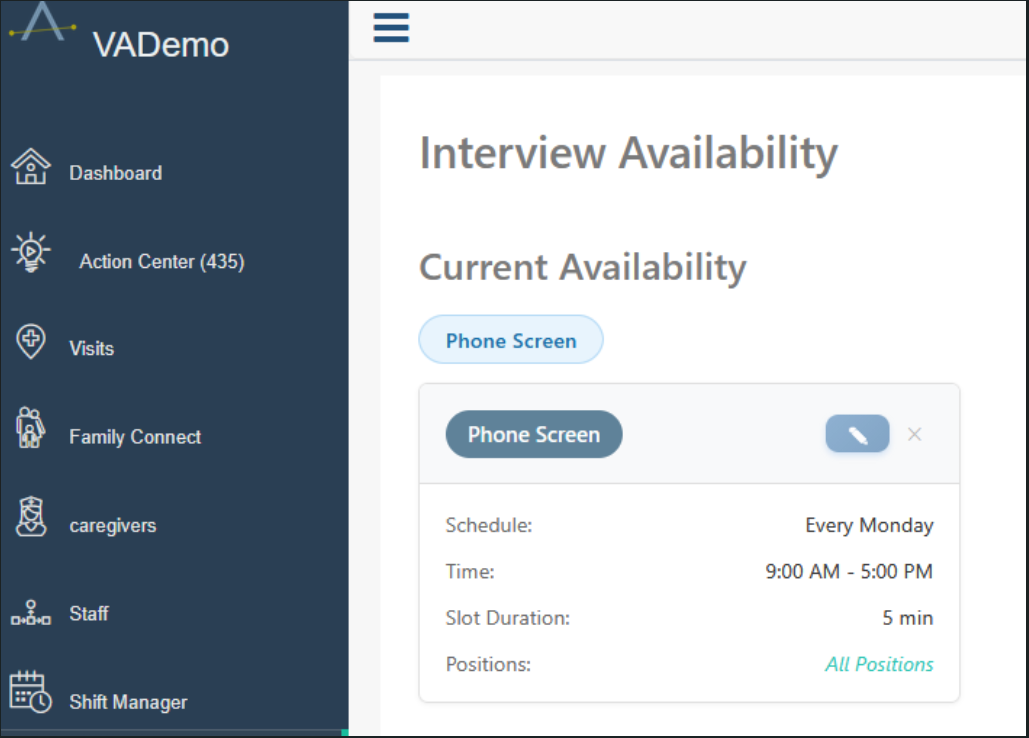
Availability allows members of your administrative team to define when they are available to conduct candidate interviews. These available times are then used when interviews are scheduled through the recruiting process.
Create availability based on the type of interview, day and time, and desired appointment duration. Availability can also be limited to particular positions when needed.
For example, you might make Phone Screen appointments available every Monday from 9:00 AM–5:00 PM in 15-minute intervals.
Review existing availability periodically to ensure candidates are only offered interview times when someone from your team is available.
Candidates
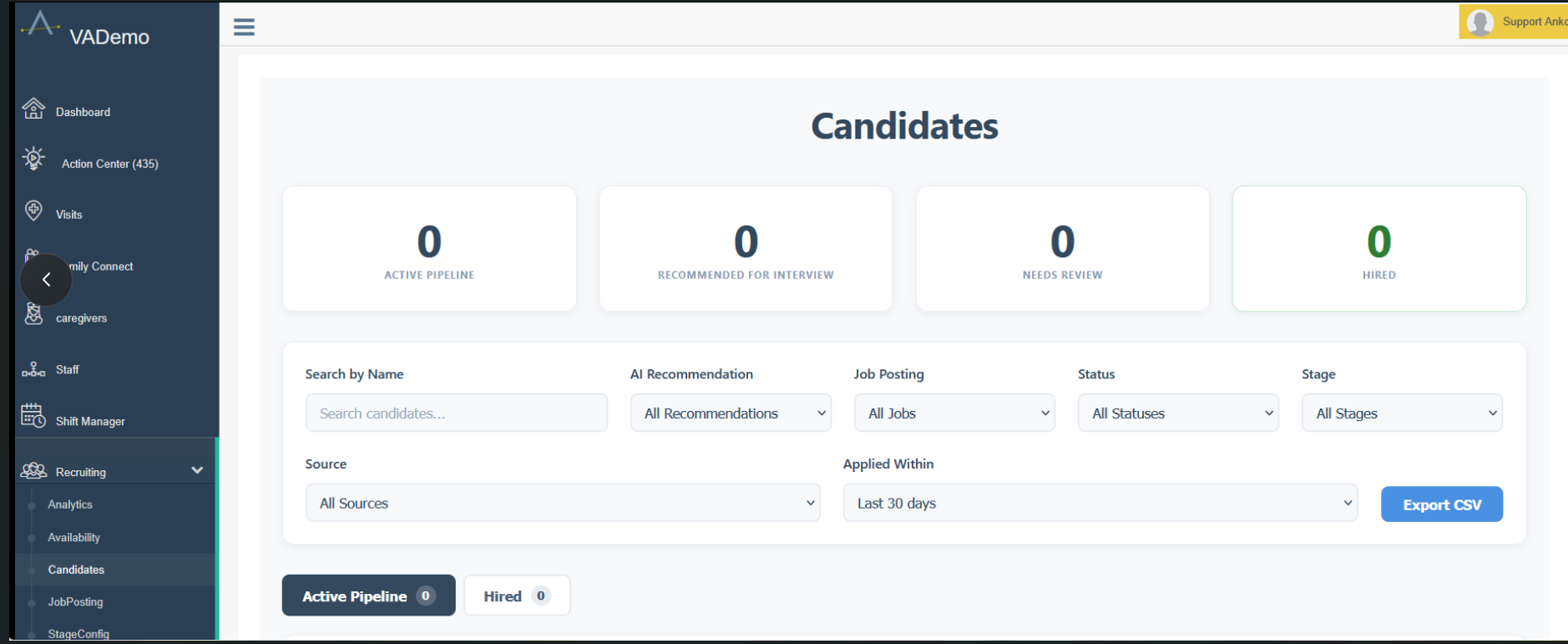
Begin by going to the Main Menu and clicking Recruiting > Candidates.
Each job posting has a unique application link that prospective caregivers can use to apply for the position.
The application guides candidates through information used by your recruiting team and Ankota's AI-assisted candidate screening. Applicants can provide information including contact and background information, caregiving experience, certifications, availability, task experience or comfort levels, and responses to short-answer questions.
After the application is submitted, Ankota creates the candidate record and places the applicant into your recruiting pipeline.
When interview scheduling is available, the candidate can also select Schedule My Interview after completing the application. Available appointment times are based on the interview availability configured by your agency.
Job Posting
Begin by going to the Main Menu and clicking Recruiting > Job Posting.
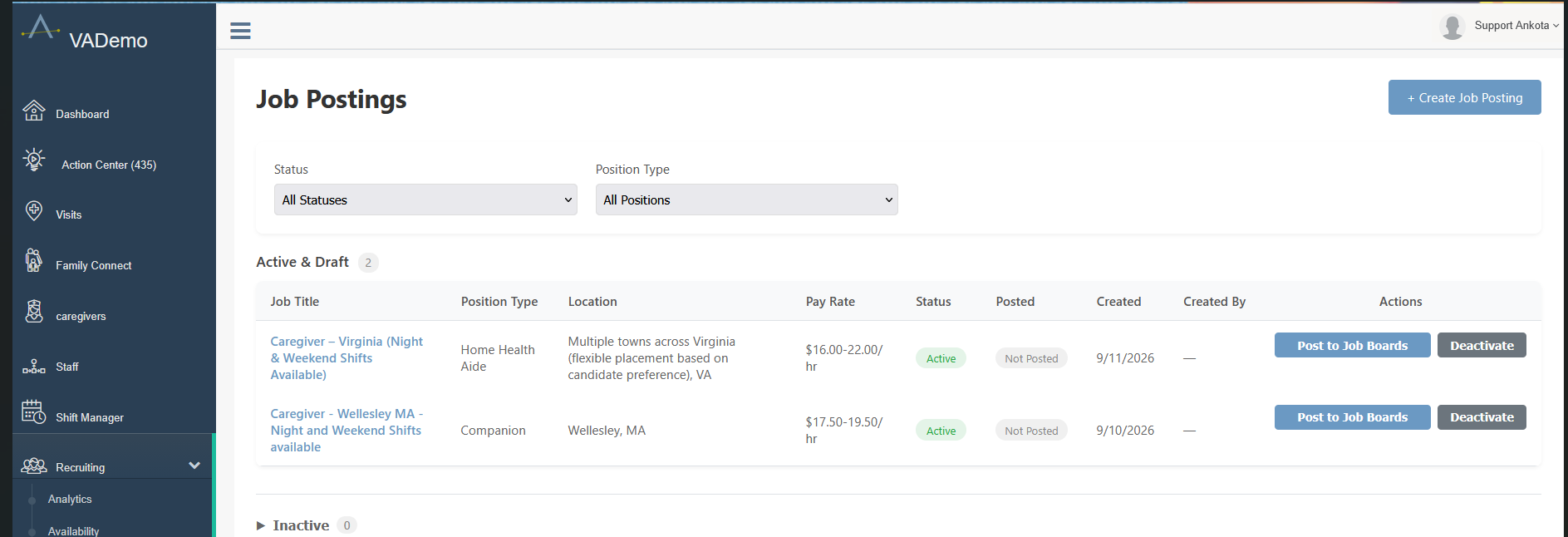
The Job Posting screen displays your active, draft, and inactive recruiting positions. You can filter the list by status or position type and quickly see the location, pay rate, posting status, and other information for each position.
To create a new position, click + Create Job Posting and enter the information about the opening, including:
Position type and job title
Location
Pay range
Shift availability
Job requirements and benefits
Other information candidates should know about the position
Ankota can use the information you provide to generate a job description with AI. Review and edit the generated description as needed before approving the posting.
Once the job has been approved, select Post to Job Boards. Ankota provides the job posting content along with a unique application URL that can be shared with prospective applicants or included when posting the position to external job boards.
Important: Ankota does not automatically publish the position directly to external job boards. The posting information and application link are provided so that your team can quickly copy and paste them into the job boards you use.
When a position is no longer available, select Deactivate.
Using the System
Recommended Set-up Order
When setting up Caregiver Recruiting for the first time, we recommend beginning with Stage Configuration to make sure the hiring stages reflect your agency's process. Next, configure administrative Availability so interview times can be offered to candidates.
Once those items are ready, create and publish your first Job Posting and begin accepting applications. Your recruiting team can then manage applicants through Candidates, while Analytics provides visibility into recruiting activity and results over time.
This gives you the natural flow: Configure Hiring Stages → Set Interview Availability → Create Job Posting → Receive Applications → Review Candidates → Schedule & Evaluate Interviews → Hire → Analyze Results.
AI Screening
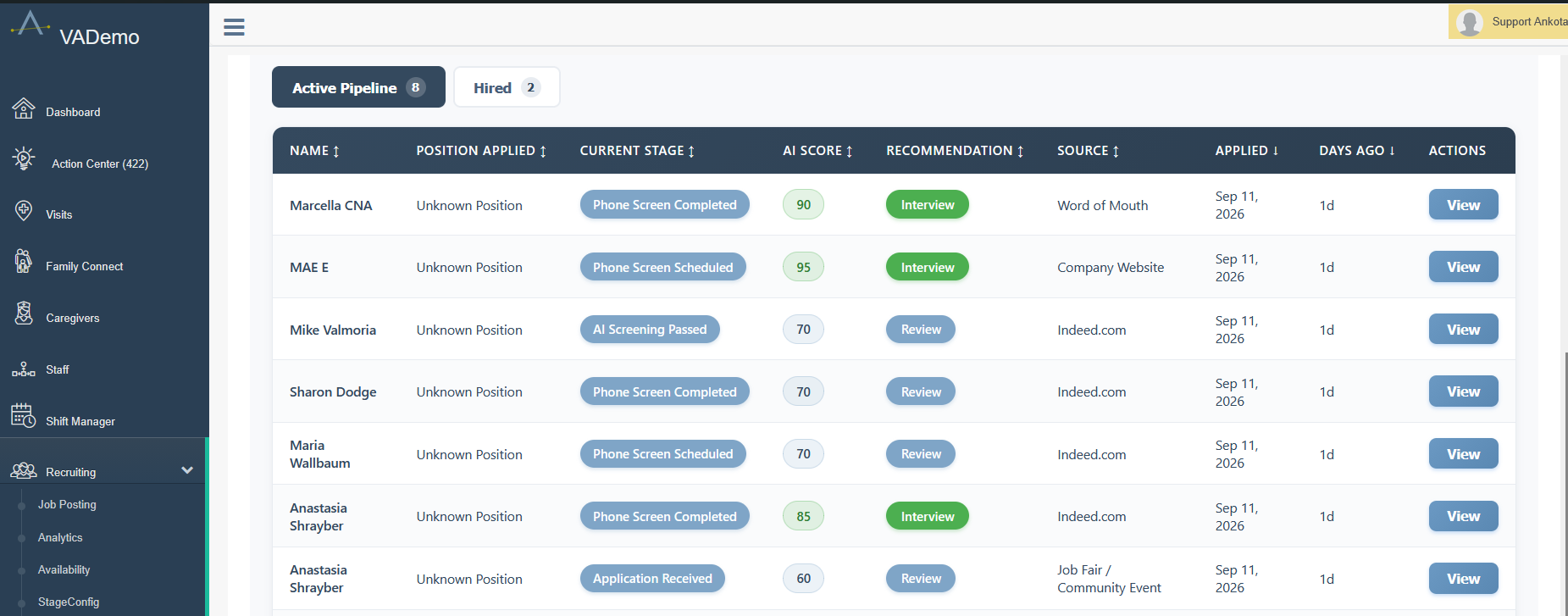
When a candidate applies, Ankota evaluates the information submitted in the application against the position and provides an AI Score / Match Quality and recommendation to assist the recruiting team.
The candidate record displays the score along with AI-generated notes explaining relevant strengths or concerns. For example, the screening may identify relevant experience and certifications while also calling attention to a job requirement that was not addressed in the application.
AI screening is intended to assist the recruiter in reviewing the candidate, not make the hiring decision. Recruiters can review the underlying application information and override the recommendation when appropriate.
Depending on the results and your review, you can advance the applicant or mark the applicant as unhirable.
Managing a Candidate
Open Recruiting > Candidates, locate the applicant, and click View.
The candidate record brings together the information collected throughout the recruiting process. At the top of the record, you can see the candidate's current pipeline status and take the next appropriate action.
Depending on the candidate's current stage, available actions may include:
Advance Candidate – move the candidate to the next stage in the normal hiring workflow.
Reject Candidate – remove the candidate from consideration using the appropriate rejection type.
Move to Stage – move the candidate directly to another appropriate pipeline stage.
The candidate record also contains the original application information, AI screening results, interview information, recruiting notes, and activity history.
Scheduling an Interview
Interviews can be scheduled using the availability entered under Recruiting > Availability.
From the candidate record, the recruiter can either:
Send Scheduling Link – Copy the scheduling link and provide it to the candidate so they can choose an available interview time.
Schedule on Their Behalf – Select Schedule Interview to choose an available appointment for the candidate directly.
Candidates may also be offered the opportunity to schedule an interview immediately after submitting their application when that option is available.
Interview Results
Completed interviews are retained as part of the candidate record.
The Interview Performance Summary provides an overview of the candidate's completed and evaluated interviews, including whether the candidate was recommended and the overall interview rating.
Expand Performance by Category to review more detailed evaluation information.
The Interview History section displays individual interviews, including the interview type, date and time, duration, completion status, recommendation, interview notes, and evaluation results.
This allows later reviewers to see both the overall assessment and the feedback provided during individual interviews.
Notes and Activity Timeline
Recruiters can use + Add Note to record additional information about a candidate throughout the recruiting process.
The Activity Timeline provides a chronological record of the candidate's movement through the hiring pipeline. It shows when the candidate entered and exited stages and identifies the candidate's current stage.
This provides a historical record of how the applicant progressed through the recruiting process, including stages that were advanced manually by a recruiter.
Analytics
Go to the Main Menu and click Recruiting > Analytics.
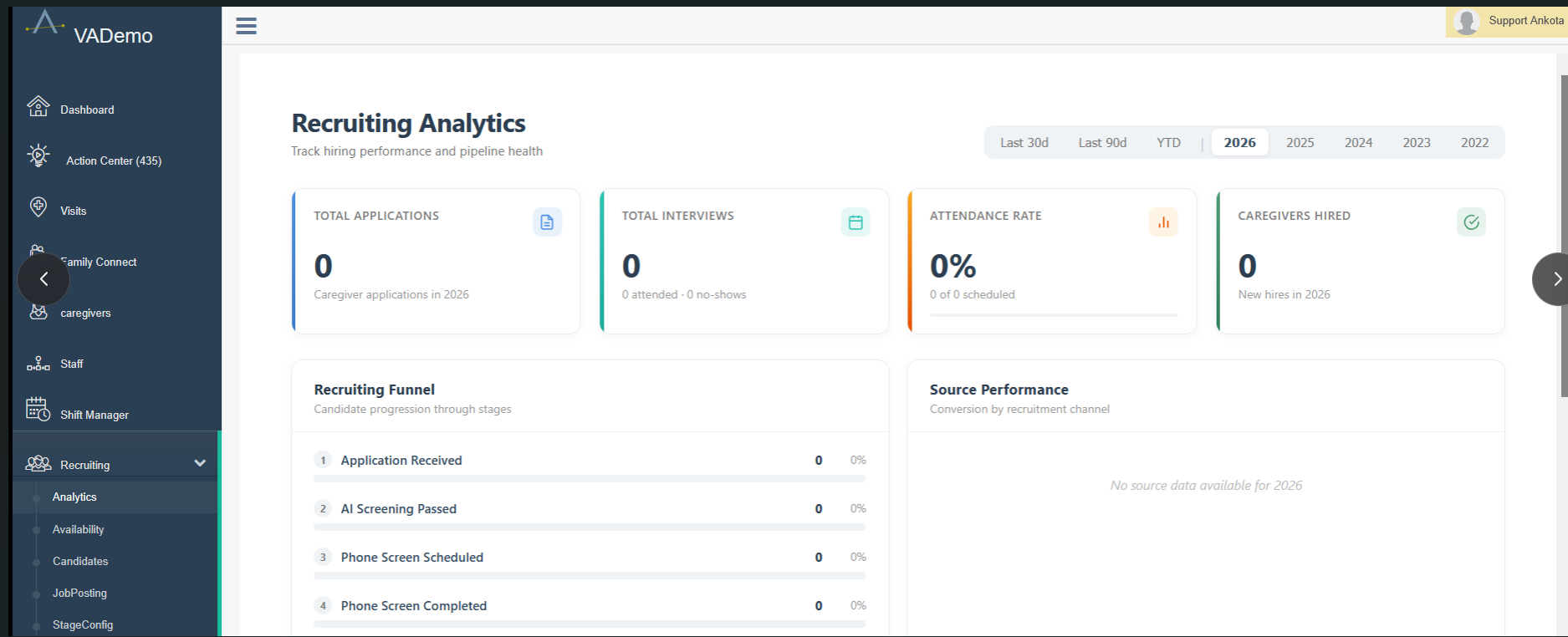
Recruiting Analytics provides an overview of hiring performance and pipeline health. Use the date controls to review recent activity or compare recruiting results by year.
The dashboard includes key recruiting measures such as:
Total applications
Total interviews
Interview attendance rate
Caregivers hired
Candidate progression through the recruiting funnel
Recruiting source performance
The Recruiting Funnel shows how candidates are progressing through your configured hiring stages, making it easier to identify where candidates may be dropping out or where the recruiting process may be slowing down.
Source Performance helps your agency evaluate where applicants are coming from and how effectively different recruiting channels produce candidates who move through the hiring process.
Section Details
See below for a more detailed walkthrough of each section.
Stage Configuration
Stage Configuration defines the hiring process candidates will move through. Ankota provides default stages, which you can review and adjust to match your agency's recruiting workflow. This is not required for set-up, but if desired, you can heavily customize your workflow.
Each stage has an assigned order and type. Stages can also be configured to indicate whether reaching that stage counts as an interview or a hire for recruiting analytics.
Begin by going to the Main Menu and clicking on Recruiting, then Stage Configuration. Review the default stages and adjust as needed, adding or removing as desired.
To add a stage, click + Add Stage.
To change an existing stage, click Edit.
To remove a stage from your active recruiting process, click Deactivate.
Use the Order controls to determine the sequence in which candidates normally progress.
Use the Active Stages and Inactive Stages tabs to review stages currently in or removed from your workflow.
NOTE: Deactivating a stage does not delete its historical data.
Analytics
Begin by going to the Main Menu and clicking Recruiting > Analytics.
Applications, interviews, attendance, hirings, as well as the various stages of hiring, are all provided here. As desired, open to review your recruiting status.
Availability
Begin by going to the Main Menu and clicking Recruiting > Availability.
Availability allows members of your administrative team to define when they are available to conduct candidate interviews. These available times are then used when interviews are scheduled through the recruiting process.
Create availability based on the type of interview, day and time, and desired appointment duration. Availability can also be limited to particular positions when needed.
For example, you might make Phone Screen appointments available every Monday from 9:00 AM–5:00 PM in 15-minute intervals.
Review existing availability periodically to ensure candidates are only offered interview times when someone from your team is available.
Candidates
Begin by going to the Main Menu and clicking Recruiting > Candidates.
Each job posting has a unique application link that prospective caregivers can use to apply for the position.
The application guides candidates through information used by your recruiting team and Ankota's AI-assisted candidate screening. Applicants can provide information including contact and background information, caregiving experience, certifications, availability, task experience or comfort levels, and responses to short-answer questions.
After the application is submitted, Ankota creates the candidate record and places the applicant into your recruiting pipeline.
When interview scheduling is available, the candidate can also select Schedule My Interview after completing the application. Available appointment times are based on the interview availability configured by your agency.
Job Posting
Begin by going to the Main Menu and clicking Recruiting > Job Posting.
The Job Posting screen displays your active, draft, and inactive recruiting positions. You can filter the list by status or position type and quickly see the location, pay rate, posting status, and other information for each position.
To create a new position, click + Create Job Posting and enter the information about the opening, including:
Position type and job title
Location
Pay range
Shift availability
Job requirements and benefits
Other information candidates should know about the position
Ankota can use the information you provide to generate a job description with AI. Review and edit the generated description as needed before approving the posting.
Once the job has been approved, select Post to Job Boards. Ankota provides the job posting content along with a unique application URL that can be shared with prospective applicants or included when posting the position to external job boards.
Important: Ankota does not automatically publish the position directly to external job boards. The posting information and application link are provided so that your team can quickly copy and paste them into the job boards you use.
When a position is no longer available, select Deactivate.