Client Concerns Notifications
Overview
- Roles of Client Concerns
- Assign Caregivers to Clients
- Client Concerns Pre-Set Choices
- Escalate Client Concern to Office via email
The client concerns functionality allows your caregivers to report client concerns via telephony or the mobile app in a special client concerns field. These concerns will then be visible in the Action Center (or Actions/Requests page, depending on how your organization may have this section named) to all appropriate caregivers. Your organization can determine what roles should see these concerns (typically RNs), and then those special caregivers can be assigned to clients via the Assigned Caregivers tab.
Please note that the basic Client Concerns functionality must turned on by an Ankota specialist. After that, you will be able to control the caregiver assignments. The following walkthrough will walk you through setting up, and then using, the Client Concerns functionality.
Roles for Client Concerns Notifications
When your Ankota specialist asks what roles you want notified, they are specifically referring to the various caregiver roles. These are created at the Organization Detail level, under the Roles subcategory.
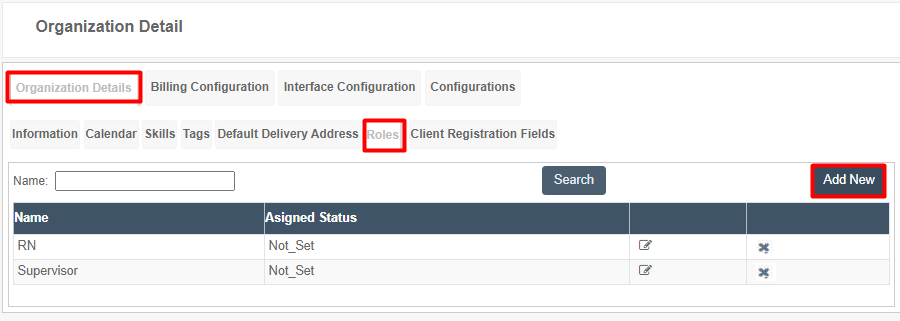
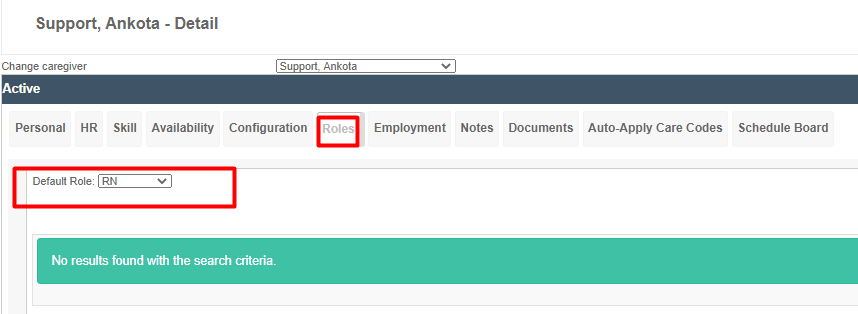
When you tell your Ankota specialist to allow this role to see client concerns, these are the roles they are referring to.
Assign Caregivers to Clients
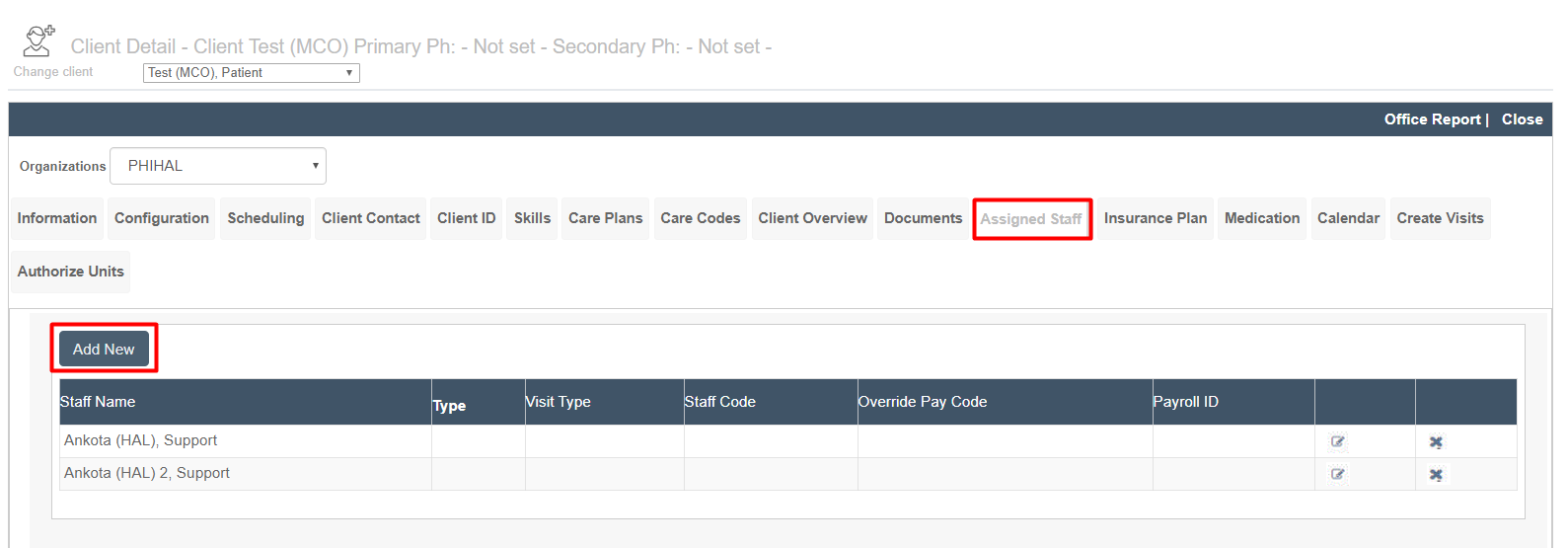
For caregivers to see appropriate client notifications, you will need to assign those designated caregivers (likely RNs) to the clients in order to see the notifications related to them.
To do so,
- Log into your environment
- Click Clients
- Click the Assigned Caregiver (or Assigned Attendant, or Assigned Staff...) tab
- Assign the caregiver by clicking the Add New button and selecting the caregiver
- No other settings need to be selected for this functionality
- Click Save
Client Concerns Pre-set Choices
Some organizations may wish to create a pre-set list of client concerns choices. If so, these can be configured at the organization level as follows. Alternately, you can send Ankota support a list of choices and request that the client concerns be configured on your behalf.
To create a new list of client concerns choices,
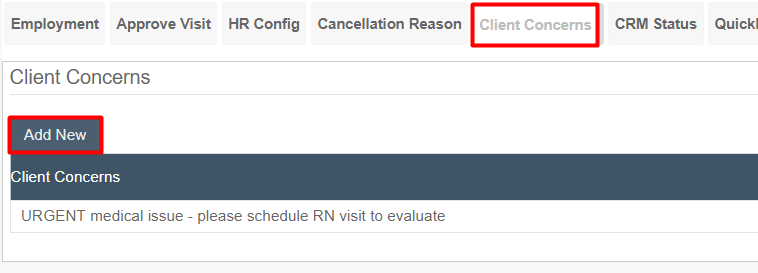
- Click Settings
- Click Org. Settings
- Click the Configurable Lists tab
- Click the Client Concerns tab
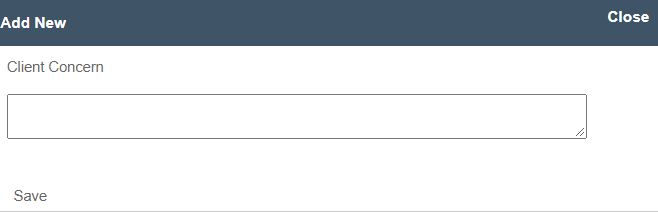
- Click Add New
- Add the new pre-set concern
- Click Save
Escalate Client Concern to Office
In the mobile caregiver app - if the caregiver reports a client concern, the visit will be set to "needs approval" and an email will be sent to the office/admin when the caregiver clocks out of the visit. Please note that an Ankota specialist needs to configure a setting before you can set an email.
Email to Office will read:
Subject
- "Client Concerns reported for [client first name, client last initial] by [caregiver first name, caregiver last name].
Body
- "The following concerns were reported for client [client first name, client last initial] by [caregiver first name, caregiver last name]. The noted concern is ----
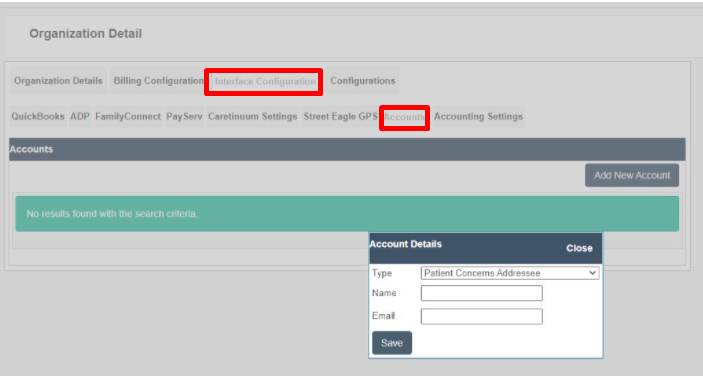
To add an email address:
- login to Ankota.net
- Click Settings Menu
- Click Organization Details
- Click Interface Configurations tab
- Click Accounts subtab
- Add new account: Client Concerns Addressee (could also say: Patient Concerns Addressee)
- To can add multiple addresses, separate with a semicolon